
By Marcus Chen | Published: April 2, 2026 | Last Updated: June 8, 2026
Upgrading desktop memory is one of the most cost-effective ways to improve system performance, but it is also one of the easiest upgrades to get wrong. A bent pin, a static discharge, or a module installed in the wrong slot can turn a simple upgrade into hours of troubleshooting. I have installed and replaced memory in hundreds of systems over the years, and the mistakes I see are almost always preventable with proper preparation and technique.
This guide walks you through the entire process from planning to verification. It covers compatibility checks, physical installation, BIOS configuration, and stability testing. Follow these steps and you will avoid the common errors that waste time and money.
Step 1: Verify Compatibility Before You Buy
The most expensive mistake in memory upgrading is buying the wrong type. Before you order anything, confirm four specifications: memory generation, form factor, maximum capacity, and speed support.
Memory generation: Your motherboard supports either DDR4 or DDR5. You cannot install DDR5 in a DDR4 slot or vice versa. The notch position in the module prevents physical insertion, but trying to force the wrong type can damage the slot. Check your motherboard manual or use CPU-Z to identify the current memory type.
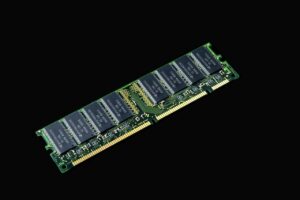
Form factor: Desktop systems use standard DIMM modules. Laptops use smaller SO-DIMM modules. Do not buy SO-DIMM for a desktop or DIMM for a laptop. The sizes are different and incompatible.
Maximum capacity: Every motherboard has a limit on total memory and per-slot capacity. A board with two slots might support 64 GB total, meaning 32 GB per slot. A board with four slots might support 128 GB total. Exceeding the per-slot limit means the module will not be recognized, and exceeding the total limit means the excess memory is wasted.
Speed support: The motherboard memory controller determines the maximum speed your system can run. A board that officially supports DDR4-3200 will not run DDR4-3600 at full speed unless you overclock the memory controller. The module will downclock to the supported speed, which means you paid for performance you cannot use.
I always check the motherboard Qualified Vendor List before recommending memory. The QVL lists specific modules that the manufacturer has tested and verified. A module not on the QVL may still work, but there is no guarantee. For critical systems, I only buy from the QVL.
Step 2: Choose the Right Kit
Once you know what your system supports, choose a kit that matches your needs. For most users, a dual-channel kit with two identical modules is the best choice. A 2×16 GB kit gives you 32 GB total with full dual-channel bandwidth. A 2×32 GB kit gives you 64 GB for heavy workloads.
Buy a matched kit rather than two individual modules. Matched kits are tested together by the manufacturer to ensure compatibility. Two individual modules with the same specifications may use different memory chips or PCBs, which can cause instability. The price difference between a matched kit and two separate modules is usually small, and the reliability benefit is significant.
Consider the speed and timings. For DDR4, 3200 MHz with CL16 timings is the sweet spot for most systems. For DDR5, 5600 to 6000 MHz with CL30 to CL36 timings is the current standard. Higher speeds are available but require better motherboards and CPUs to achieve stability. Do not pay extra for speed your system cannot use.
I recently helped a client upgrade from 16 GB to 32 GB. The client wanted to buy two individual 16 GB sticks because they were slightly cheaper than a matched kit. I explained the compatibility risk, and the client chose the matched kit. The system has been stable for six months with no issues. The small savings from buying separate modules would not have been worth the potential headache.
Step 3: Prepare for Installation
Before touching any hardware, prepare your workspace and yourself.
Power off the computer completely and unplug the power cord from the wall. Press the power button once after unplugging to discharge any residual power in the capacitors. If your power supply has a switch, turn it off as well.
Ground yourself to prevent static discharge. Touch a metal part of the computer case or use an anti-static wrist strap connected to a grounded surface. Static electricity can damage memory chips without you feeling or seeing anything. I have seen modules fail immediately after installation because the installer was wearing wool socks on a dry carpet.
Clear a clean, flat workspace with good lighting. You need to see the slot orientation, the retention clips, and the notch alignment clearly. A cluttered desk increases the risk of dropping a module or installing it at the wrong angle.
Have the motherboard manual nearby. Even if you have installed memory before, different boards have different slot population rules. Some boards require modules in specific slots for dual-channel operation. The manual tells you exactly which slots to use.
Step 4: Remove the Old Modules
Open the computer case. Remove the side panel that gives you access to the motherboard. Most cases use thumb screws or standard screws on the back panel. Some cases have quick-release latches. Keep track of screws and panels because you need to reassemble everything later.
Locate the memory slots. They are long, narrow slots near the CPU socket, usually two or four in a row. Each slot has a retention clip at both ends. Some boards have clips on only one end for easier access.
To remove an existing module, push down on both retention clips simultaneously. The module will pop up slightly at an angle. Gently grasp the module by the edges, not the gold contacts, and pull it straight out. Do not rock the module side to side. Pull it out in the same direction it popped up.
Place the removed module on a clean, anti-static surface. If you plan to reuse or sell it, handle it carefully to avoid scratching the PCB or damaging the contacts. I keep old modules in their original anti-static bags for storage.
If you are removing multiple modules, remove them one at a time and note which slot each came from. This helps if you need to troubleshoot later. Some boards have color-coded slots to indicate channel pairing, which is useful for reinstallation.
Step 5: Install the New Modules
Before inserting the new module, inspect the slot and the module. Look at the notch in the module and the key in the slot. They must align perfectly. If the notch is not aligned with the key, the module will not insert fully and forcing it will damage both the module and the slot.
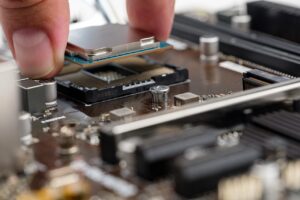
Hold the module by the edges with both hands. Align the notch with the key and position the module above the slot at a slight angle, roughly 30 to 45 degrees. The module should slide into the slot with gentle, even pressure. Do not force it. If you feel resistance, stop and check the alignment again.
Once the module is fully seated in the slot, press down firmly on both ends until both retention clips click into place. The module should sit flat and level with the slot. If one side is higher than the other, the retention clip on that side is not engaged. Press down on that side until it clicks.
Verify that both clips are fully closed and the module is secure. A loose module can cause intermittent contact failures that manifest as random crashes or memory errors. I have fixed multiple systems simply by reseating a module that was not fully clicked in.
If you are installing two modules for dual-channel, use the slots recommended by the motherboard manual. On most boards, this is the second and fourth slots from the CPU, labeled A2 and B2. Some boards use different labeling, so check the manual. Installing modules in the wrong slots will still work but may run in single-channel mode, cutting bandwidth in half.
Step 6: Reassemble and Power On
Replace the side panel and secure it with screws or latches. Reconnect the power cord. Do not power on yet. Double-check that all cables are connected, especially the main 24-pin motherboard power and the CPU power connectors. A loose power cable can cause boot failures that look like memory problems.
Press the power button and watch the boot process. The first boot after a memory change may take longer than usual because the motherboard is retraining the memory controller. This is normal. If the system fails to POST, the motherboard may attempt automatic recovery by resetting to default settings. If that happens, you will see a message about memory configuration changes.
If the system boots into Windows, open Task Manager and go to the Performance tab. Click Memory and verify that the total installed capacity matches what you expect. If you installed 32 GB and Windows shows 16 GB, one module is not being detected. Power off and reseat the undetected module.
Check the speed. If the memory is running at a lower speed than advertised, you need to enable the performance profile in the BIOS. This is covered in the next step.
Step 7: Configure the BIOS
Restart the computer and enter the BIOS by pressing the appropriate key during boot. The key is usually Delete, F2, or F10, and it is displayed briefly on the screen.
Look for the XMP or EXPO setting. On Intel boards, it is usually labeled XMP Profile or Extreme Memory Profile. On AMD boards, look for EXPO or A-XMP. Enable the profile that matches your memory kit. If your kit has multiple profiles, start with Profile 1.
Save and exit the BIOS. The system will reboot with the faster memory settings. If the system fails to POST after enabling the profile, the motherboard will usually reset to defaults automatically. If it does not, clear the CMOS manually by removing the motherboard battery or using the clear CMOS jumper.
After enabling the profile, verify the speed in Windows. Use CPU-Z or Task Manager to confirm the memory is running at the advertised frequency. For DDR4, the effective speed is double the DRAM frequency shown in CPU-Z. For DDR5, the effective speed is four times the DRAM frequency.
I always enable the XMP or EXPO profile immediately after installation. Running memory at JEDEC defaults wastes the performance you paid for, and the profile is tested by the manufacturer for stability. If the profile is not stable on your system, the issue is usually the CPU memory controller or the motherboard, not the memory itself.
Step 8: Test for Stability
A successful boot does not guarantee stability. You need to test the memory under load to confirm the configuration is reliable.
Run MemTest86 from a bootable USB drive for at least two full passes. This tests every memory address with multiple patterns designed to catch different types of failures. Any errors, even a single one, indicate instability. Zero errors is a strong positive signal, though it does not guarantee perfection.
After MemTest86, run a real-world stress test. For general systems, run a demanding application or game for at least an hour. For workstations, run a large compile, render, or simulation. Monitor for crashes, freezes, or application errors.
Check Windows Event Viewer for WHEA errors. These are hardware-level errors reported by the CPU or motherboard. Even if the system does not crash, WHEA errors indicate that the memory configuration is pushing the hardware beyond its reliable limits. If you see WHEA errors, reduce the memory frequency or increase the voltage slightly.
I test every memory upgrade with this two-stage process. MemTest86 catches obvious failures. Real-world testing catches intermittent issues that synthetic tests miss. Event Viewer catches subtle instability that does not cause immediate crashes but degrades reliability over time.
Step 9: Troubleshoot Common Problems
If you encounter problems after installation, here are the most common causes and solutions:
System does not POST. Reseat all modules and verify they are fully clicked in. Check that you used the correct slots for dual-channel. Try booting with one module at a time to isolate a bad module or slot. Clear the CMOS if the BIOS settings are corrupted.
System shows less memory than installed. One module is not seated properly or is in a damaged slot. Reseat the module. If it still does not show, test it in a different slot. If it works in another slot, the original slot may be damaged.
System is unstable after enabling XMP or EXPO. The profile is too aggressive for your CPU or motherboard. Try a lower profile if available. Increase the memory voltage slightly within safe limits. Loosen the primary timings manually. If nothing works, run at JEDEC defaults and accept the lower speed.
System crashes during gaming but passes memory tests. The memory may be overheating. Check module temperatures with HWiNFO. If they exceed 50 degrees Celsius for DDR4 or 45 degrees for DDR5, improve case airflow. Overheating causes errors that appear only under sustained load.
I once troubleshot a system that crashed only during summer months. The memory was fine in winter but failed in summer because the ambient temperature pushed the modules over their thermal limit. Adding a case fan solved the problem completely.
Summary
Upgrading desktop RAM is straightforward if you prepare properly. Verify compatibility before buying. Choose a matched kit from a reliable brand. Ground yourself before handling modules. Install carefully with correct alignment. Enable XMP or EXPO in the BIOS. Test thoroughly with MemTest86 and real-world workloads. Troubleshoot systematically if problems arise.
The performance improvement from a proper memory upgrade is immediate and noticeable. A system that was swapping to disk becomes responsive. A system that was running single-channel gains double the bandwidth. And a system that was at capacity gains the headroom to handle larger workloads without choking.
If you are considering mixing your new memory with old modules to save money, understand the risks before you do it. Mixed configurations can work, but they often introduce instability and reduced performance that undermines the benefit of the upgrade.
Mixing RAM Brands and Capacities: Risks and Best Practices
About the Author: Marcus Chen is a PC hardware tester and writer with over eight years of hands-on experience building and troubleshooting custom systems. He tests every guide on real hardware before publishing.
Last updated: June 8, 2026

Marcus Chen is a PC hardware enthusiast and writer based in the Pacific Northwest. He has spent the last eight years building, testing, and troubleshooting custom desktop systems for gaming and creative workloads. Marcus writes from direct experience — every guide and review on this site comes from real builds, real benchmarks, and real problems he has solved firsthand. When he is not benchmarking memory kits or tweaking BIOS settings, he is exploring how hardware performance shapes the games and software we use every day.