
By Marcus Chen | Published: December 17, 2025 | Last Updated: May 9, 2026
When you install new memory in your system, it rarely runs at the speed printed on the box. That DDR5-6000 kit you bought? It is probably running at 4800 MHz until you tell the BIOS to use the faster profile. That DDR4-3600 kit? It is likely stuck at 2133 or 2666 MHz. The reason is a safety feature called JEDEC defaults, which ensures the system boots reliably before you apply any performance tuning.
XMP and EXPO are the two technologies that unlock the advertised speed of your memory. XMP is Intel’s standard, though it works on AMD boards too. EXPO is AMD’s newer standard, designed specifically for DDR5 on Ryzen 7000 and later platforms. In this guide, I will show you how to enable both, what to do when they fail, and how to manually tune memory if the automatic profile is not stable on your system.
What XMP and EXPO Actually Do
XMP stands for Extreme Memory Profile. It is a set of preconfigured memory timings, voltage, and frequency stored on a small chip inside your RAM module. When you enable XMP in the BIOS, the motherboard reads that chip and applies the settings automatically. The profile includes the memory frequency, the primary timings like CAS latency, the voltage for the memory controller, and sometimes secondary and tertiary timings that affect stability.
EXPO stands for Extended Profiles for Overclocking. It is AMD’s answer to XMP, introduced with DDR5 and Ryzen 7000. EXPO profiles are similar in concept but tuned for AMD’s memory controller and Infinity Fabric architecture. On a Ryzen 7000 or 9000 system, an EXPO profile is usually more stable than an XMP profile because it accounts for the specific behavior of AMD’s memory subsystem.
The key point is that both profiles are overclocking. They push the memory controller beyond its default specifications. That is why they are disabled by default. The motherboard manufacturer does not want to be responsible for a system that fails to boot because of aggressive memory settings.
How to Check Your Current Memory Speed
Before you enable anything, verify what speed your memory is actually running at. There are several ways to check:
In Windows, open Task Manager and go to the Performance tab. Click Memory. The speed shown here is the current operating frequency, not the effective DDR frequency. If you see 2400 MHz, your DDR4-4800 kit is running at half speed because the display shows the base clock, not the doubled data rate. Multiply by two to get the effective speed. For DDR5, the display is more straightforward because DDR5 does not use the same doubling convention in most tools.
For a more accurate reading, use CPU-Z. Download it from cpuid.com, install it, and go to the Memory tab. The DRAM Frequency field shows the actual clock. For DDR4, double that number to get the effective speed. For DDR5, the effective speed is four times the clock because DDR5 uses a more complex internal architecture. If CPU-Z shows 1500 MHz for DDR5, the effective speed is 6000 MHz.
I always check CPU-Z before and after enabling XMP or EXPO. It gives me the exact numbers without ambiguity, and it shows the timings and voltage alongside the frequency.
How to Enable XMP in the BIOS
The exact steps vary by motherboard manufacturer, but the general process is the same across ASUS, MSI, Gigabyte, and ASRock boards.
Restart your computer and press the BIOS key during boot. The key is usually Delete, F2, or F10, and it is displayed briefly on the screen when the system starts. If you miss it, restart and try again.
Once in the BIOS, look for the XMP or memory overclocking section. On ASUS boards, it is usually under AI Tweaker or Extreme Tweaker. On MSI boards, look under Overclocking or Advanced DRAM Configuration. On Gigabyte boards, it is under M.I.T. or Advanced Memory Settings. On ASRock boards, look under OC Tweaker.
You will see a dropdown or toggle labeled XMP, XMP Profile, or Extreme Memory Profile. Set it to Profile 1 or Enabled. Some high-end kits have a second profile, labeled Profile 2, which is usually a more aggressive overclock. Start with Profile 1 unless you know your system can handle the higher settings.
Save and exit the BIOS. The system will reboot, and if the profile is stable, Windows will load with the faster memory speed. If the profile is not stable, the system may fail to POST, reboot automatically, or load Windows with errors.
How to Enable EXPO on AMD Ryzen 7000 and 9000
EXPO is enabled similarly to XMP but with AMD-specific options in the BIOS.
Restart and enter the BIOS. On an ASUS AMD board, go to AI Tweaker and look for EXPO or Memory Context Restore. On an MSI AMD board, look for A-XMP or EXPO under the overclocking section. On Gigabyte AMD boards, it is under M.I.T. Advanced Memory Settings. The label varies by manufacturer, but the function is the same.
Select the EXPO profile that matches your memory kit. If your kit has both XMP and EXPO profiles, choose EXPO for AMD systems. The EXPO profile is tuned for the Ryzen memory controller and will usually give better stability and performance than the XMP equivalent on the same AMD platform.
One important setting on AMD DDR5 systems is Memory Context Restore. This feature saves the memory training results from the previous boot so the system does not need to retrain every time. It speeds up boot times significantly on DDR5 systems because DDR5 training is complex and time-consuming. Enable it if your BIOS supports it, but test stability carefully because it can sometimes cause issues after BIOS updates.
I tested this on a Ryzen 9 7950X system with DDR5-6000 EXPO memory. With Memory Context Restore disabled, the boot time was 38 seconds. With it enabled, the boot time dropped to 22 seconds. The memory performance was identical in both configurations.
What to Do When XMP or EXPO Fails
Not every system can run the advertised memory speed. If enabling the profile causes a failure to POST, the motherboard will usually attempt to recover automatically. Most modern boards have a fail-safe mechanism that resets the memory to default settings after two or three failed boot attempts. If that does not happen, you can clear the CMOS manually by removing the motherboard battery for a few minutes or using the clear CMOS jumper or button.
If the profile loads but Windows is unstable, you have several options:
Try a lower profile. If your kit has Profile 1 and Profile 2, try Profile 1. If Profile 1 is unstable, you may need to manually reduce the frequency.
Increase the memory voltage slightly. Some kits need a small voltage bump to maintain stability. For DDR4, increase from 1.35V to 1.36V or 1.37V. For DDR5, increase from 1.25V to 1.30V. Do not exceed 1.4V on DDR4 or 1.35V on DDR5 unless you know what you are doing and have adequate cooling.
Loosen the primary timings. If the profile specifies 16-18-18-36, try 18-20-20-40. Looser timings reduce performance slightly but improve stability. This is a common fix for systems that are close to stable but not quite there.
Check your CPU memory controller. Intel 12th and 13th generation CPUs have a memory controller that struggles with DDR5 above 6400 MHz on some silicon. AMD Ryzen 7000 officially supports DDR5-5200, and running higher requires a good memory controller on the CPU. If your CPU has a weak memory controller, you may not reach the kit’s advertised speed no matter what you do.
I encountered this on an Intel Core i5-12600K that refused to run DDR5-6400 XMP stable. The same memory kit ran perfectly on a Core i9-13900K. The i5 simply had a weaker memory controller. Dropping the frequency to 6000 MHz solved the problem on the i5 without any other changes.
Manual Tuning When Automatic Profiles Fail
If XMP or EXPO is not stable and you do not want to give up on performance, manual tuning is the next step. This requires patience and testing, but it can yield better results than the automatic profile.
Start by setting the memory frequency to the highest value that boots reliably. Then test with MemTest86 for one full pass. If it passes, increase the frequency by one step and test again. If it fails, back off one step and move to timing adjustments.
Adjust the primary timings one at a time. The four numbers you see in XMP profiles represent CAS latency, tRCD, tRP, and tRAS. Lower numbers are faster but harder to stabilize. Increase each number by one or two clicks and test again. Find the tightest combination that passes MemTest86.
Finally, adjust the voltage. Increase in small increments of 0.01V and test after each change. Monitor temperatures during testing. If the modules get too hot, add airflow or accept slightly looser timings at a lower voltage.
This process takes hours, but it is the only way to extract maximum performance from a system that cannot run the automatic profile. I have used this method on several test benches where the motherboard or CPU memory controller was marginal. The results are usually 80 to 90 percent of the advertised speed, which is still a significant improvement over JEDEC defaults.
Testing Stability After Enabling XMP or EXPO
Never assume a profile is stable just because Windows boots. Run these tests to verify:
First, MemTest86 for at least two full passes. Any errors mean the configuration is not stable, even if Windows seems fine.
Second, a real-world stress test. For gaming systems, run a demanding game for an hour. For workstations, run a large compile, render, or simulation. Monitor for crashes, freezes, or application errors.
Third, check event logs. Open Event Viewer in Windows and look at the System log for warnings or errors related to memory, WHEA, or hardware. WHEA errors in particular indicate hardware-level problems that may not cause immediate crashes but indicate instability.
I once enabled XMP on a system that passed MemTest86 but showed WHEA corrected errors in the Event Viewer every few minutes. The system never crashed, but the errors meant the memory controller was struggling. Reducing the frequency by 200 MHz eliminated the errors entirely.
Upgrading Laptops: A Different Challenge
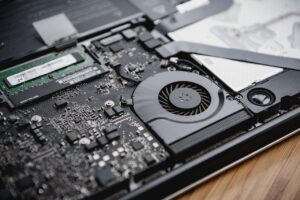
Enabling XMP or EXPO on a desktop is straightforward because desktop BIOSes expose the settings. On laptops, the situation is different. Most laptops do not allow memory overclocking at all. The BIOS is locked down, and the memory runs at JEDEC speeds regardless of what the module supports.
Some gaming laptops from ASUS, MSI, and Alienware do expose XMP or memory overclocking in the BIOS, but this is the exception, not the rule. If you are buying memory for a laptop upgrade, check the laptop’s specifications and user forums to see if overclocking is supported before paying extra for a high-speed kit.
For most laptop users, the priority is reliability and capacity, not speed. If your laptop is running slow, the best upgrade is often more memory, not faster memory. Adding a second module to enable dual-channel mode can double memory bandwidth and improve performance significantly, even at JEDEC speeds.
If you are looking to revive an aging laptop, the right memory upgrade can make a noticeable difference in everyday responsiveness. The key is choosing modules that are reliable and compatible with your specific model.
The Most Reliable RAM Upgrades to Revive Aging Laptops
About the Author: Marcus Chen is a PC hardware tester and writer with over eight years of hands-on experience building and troubleshooting custom systems. He tests every guide on real hardware before publishing.
Last updated: May 9, 2026

Marcus Chen is a PC hardware enthusiast and writer based in the Pacific Northwest. He has spent the last eight years building, testing, and troubleshooting custom desktop systems for gaming and creative workloads. Marcus writes from direct experience — every guide and review on this site comes from real builds, real benchmarks, and real problems he has solved firsthand. When he is not benchmarking memory kits or tweaking BIOS settings, he is exploring how hardware performance shapes the games and software we use every day.